
Cliniko | Autopilot Integration (Step by Step Guide)
STEP ONE - Set Up New Patient Appointment Confirmations & Forms
In this guide you will follow the step by step guide to put your patient recall, retention and reputation on Autopilot.
In Cliniko
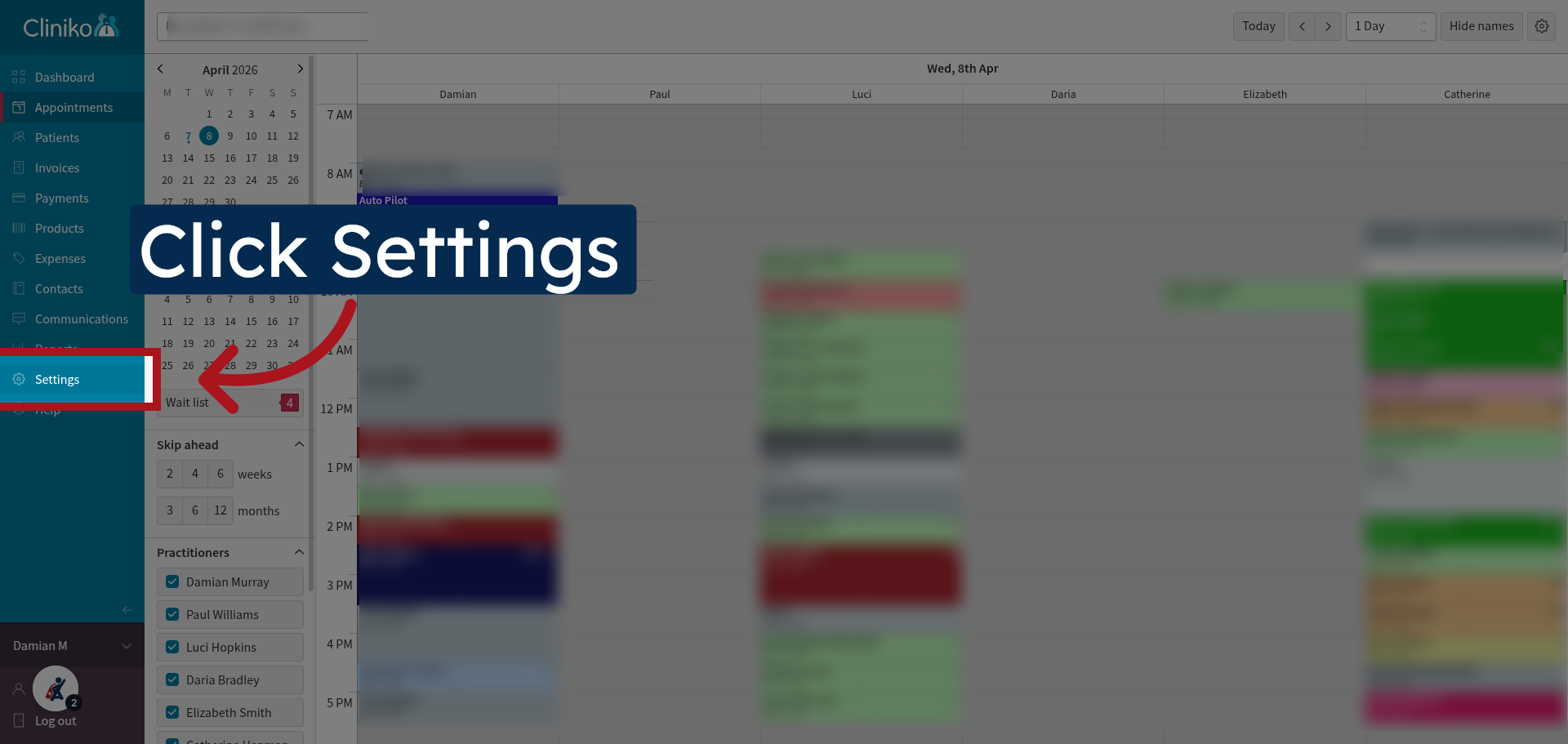
1. Open Settings Menu
In your Cliniko account navigate to Settings.
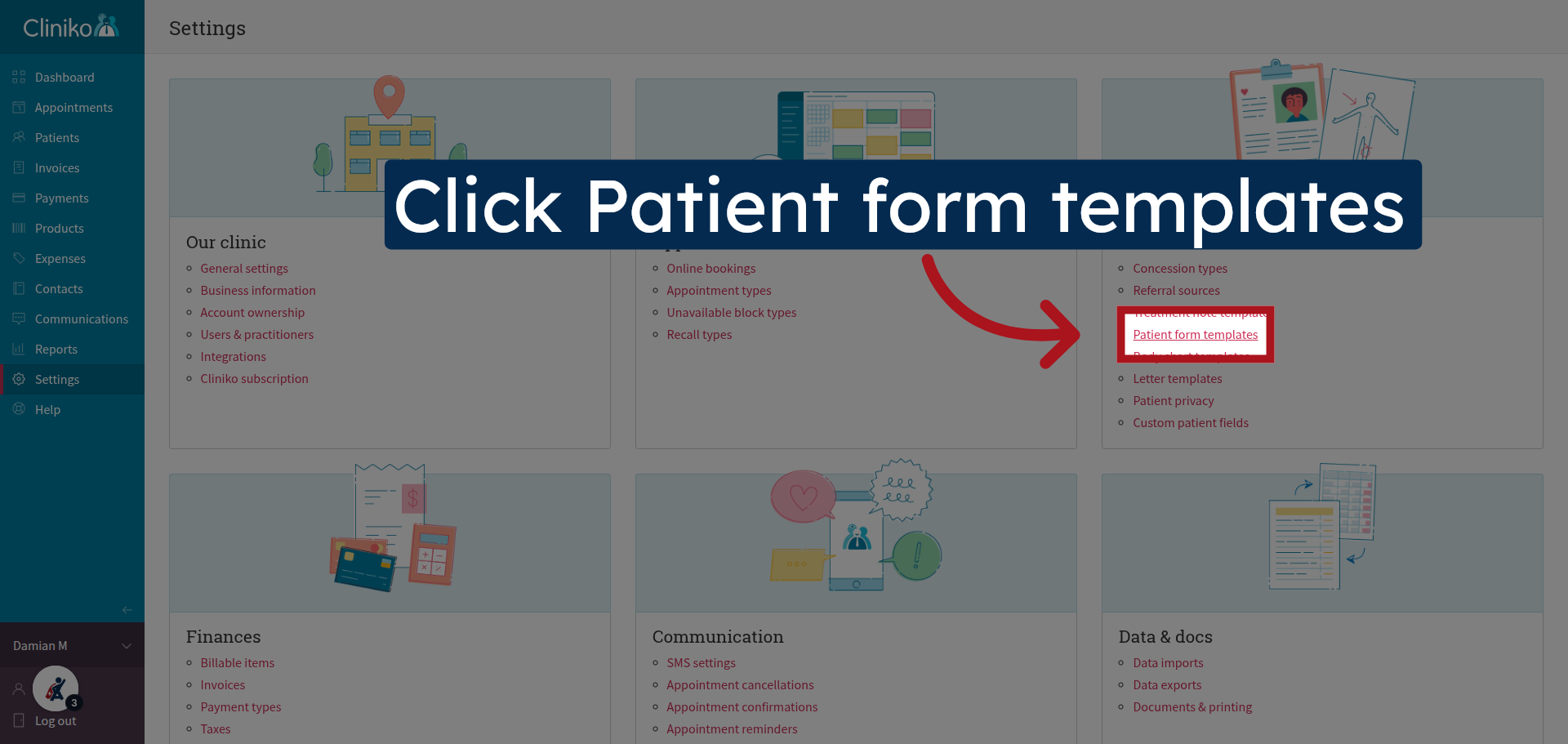
2. Navigate to Patient Form Templates
In the Patients section - Click on the "Patient form templates"
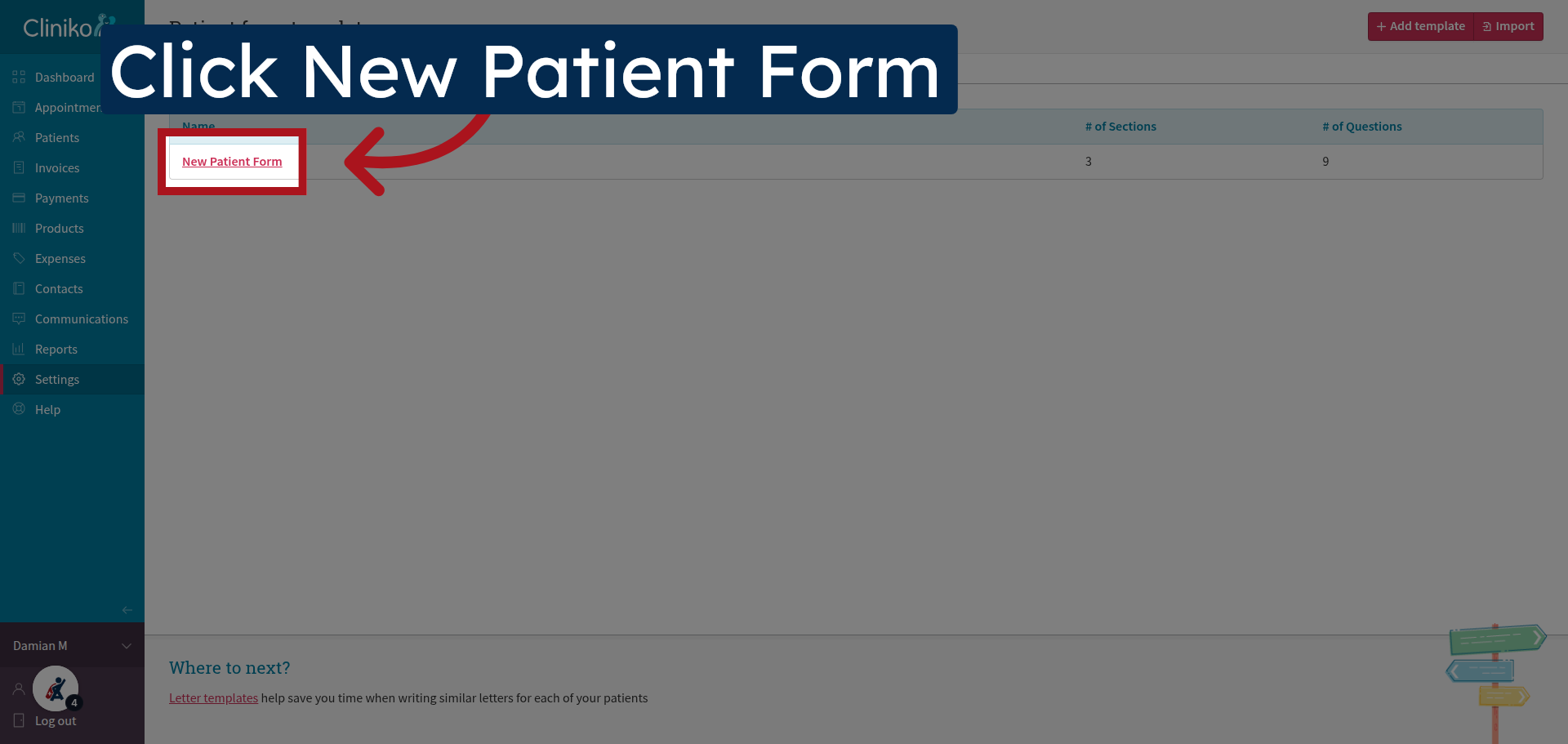
3. Create New Patient Form
Create a "New Patient Form" using the 'Add Question' for general information and 'Add Connected Question' for data that will populate the patient fields. For further guidance on forms go to the Cliniko help docs.
4. Access Form Settings
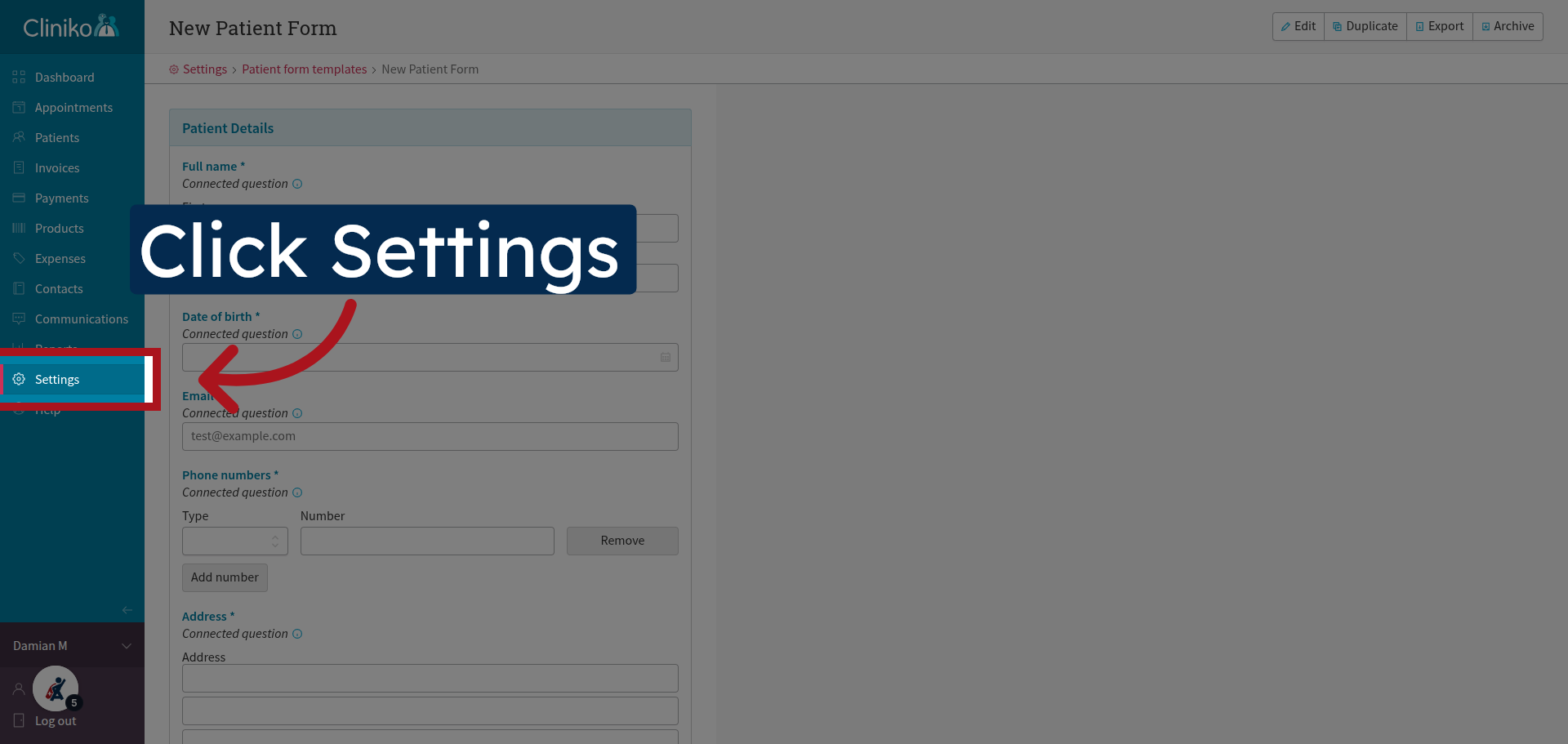
Once the form is completed - Clickthe "Settings" again.
5. Open Appointment Confirmations
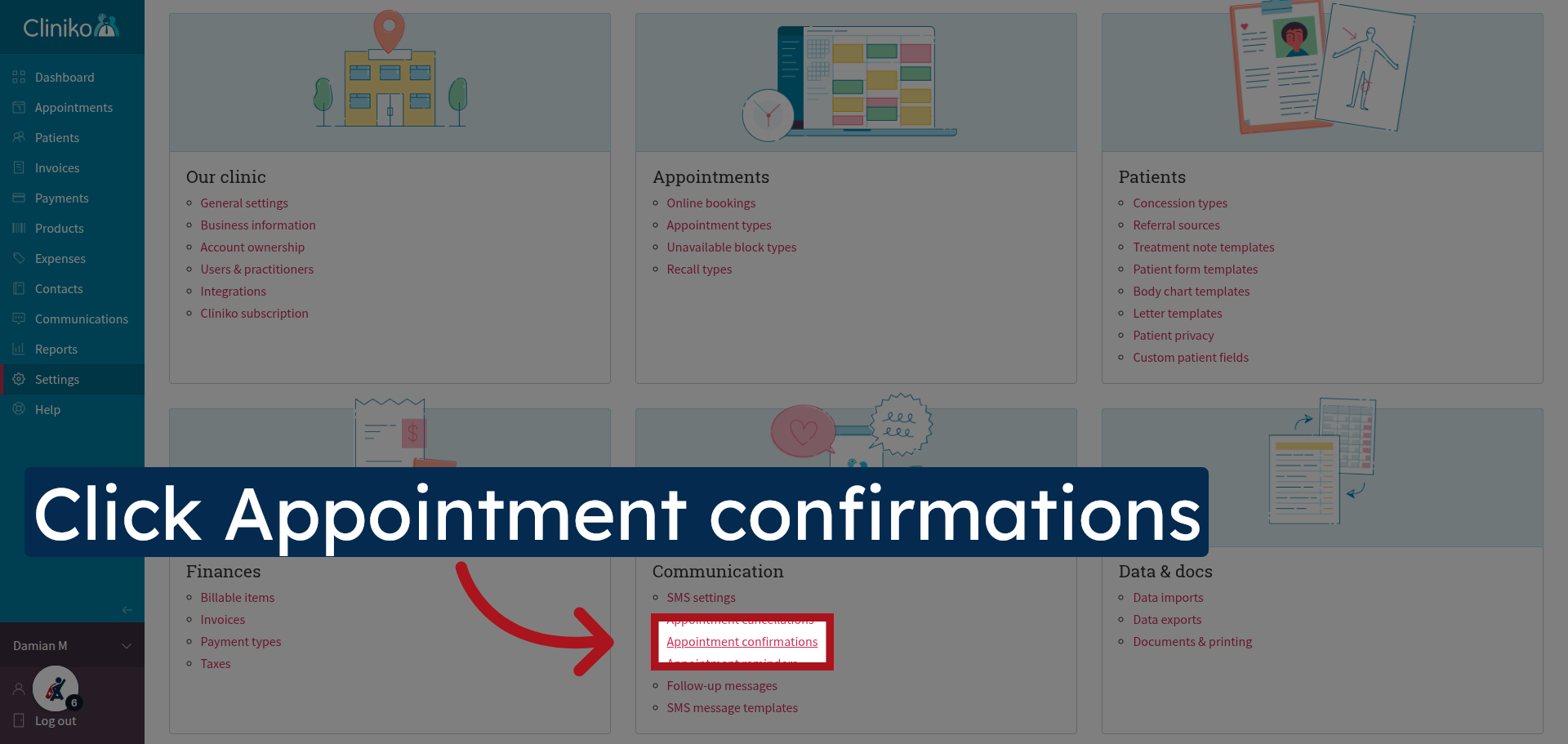
Navigate to the "Appointment confirmations" to manage templates for appointment notifications.
6. Create New Confirmation Template
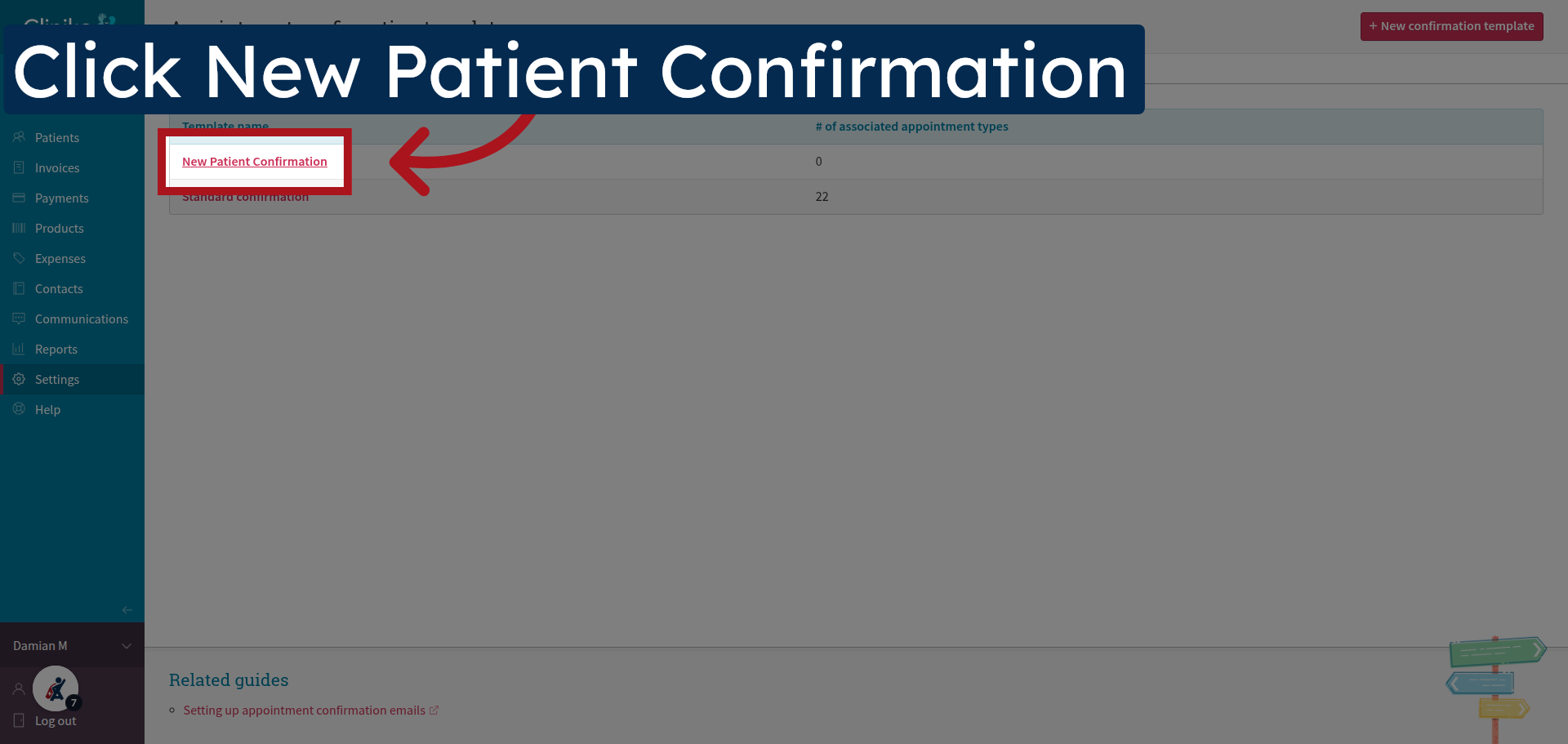
Create a New Patient Confirmation email.
7. Select Patient Form Template
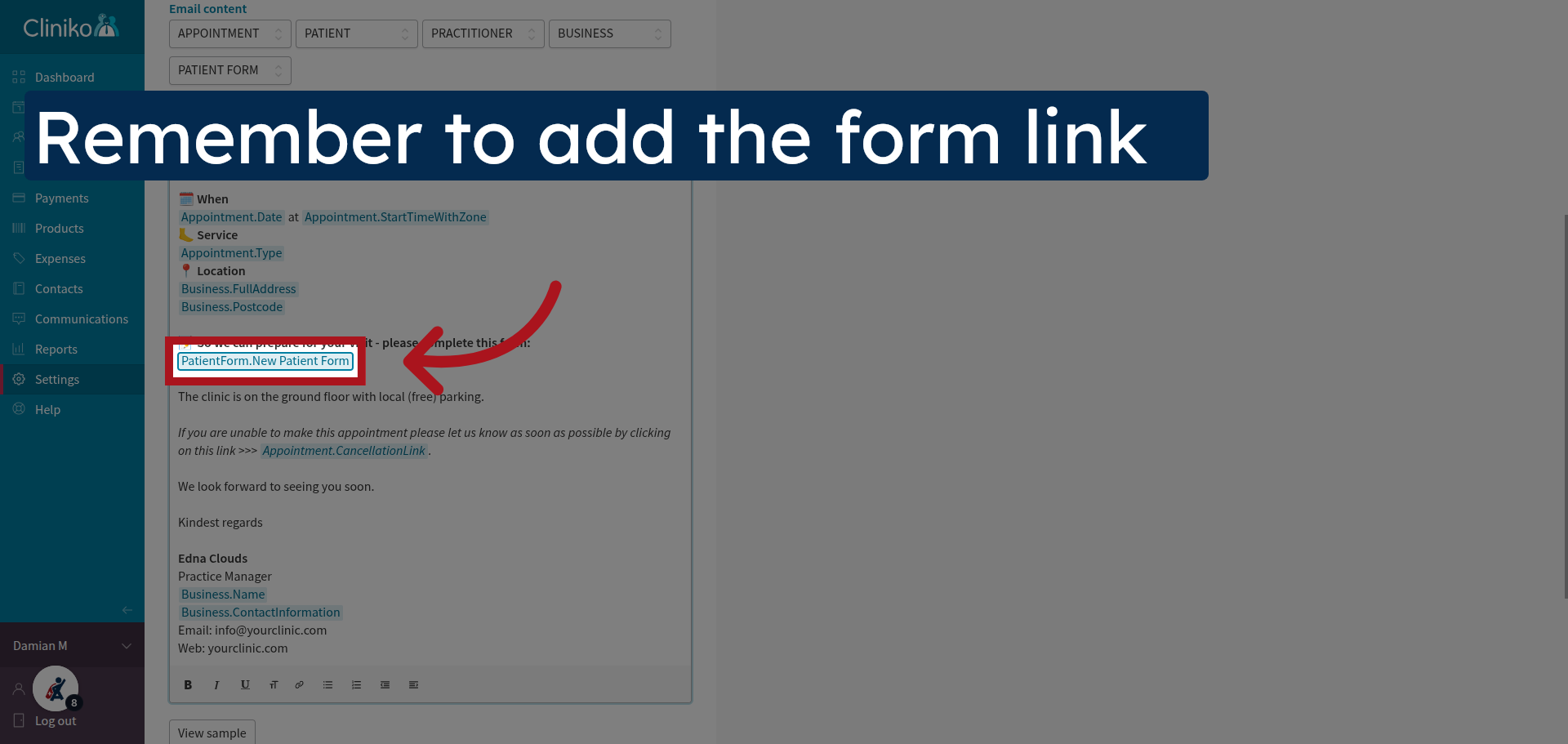
Populate the email template with the patient name, appointment date, time and location. Remember to add the link to the New Patient form you created in the previous step.
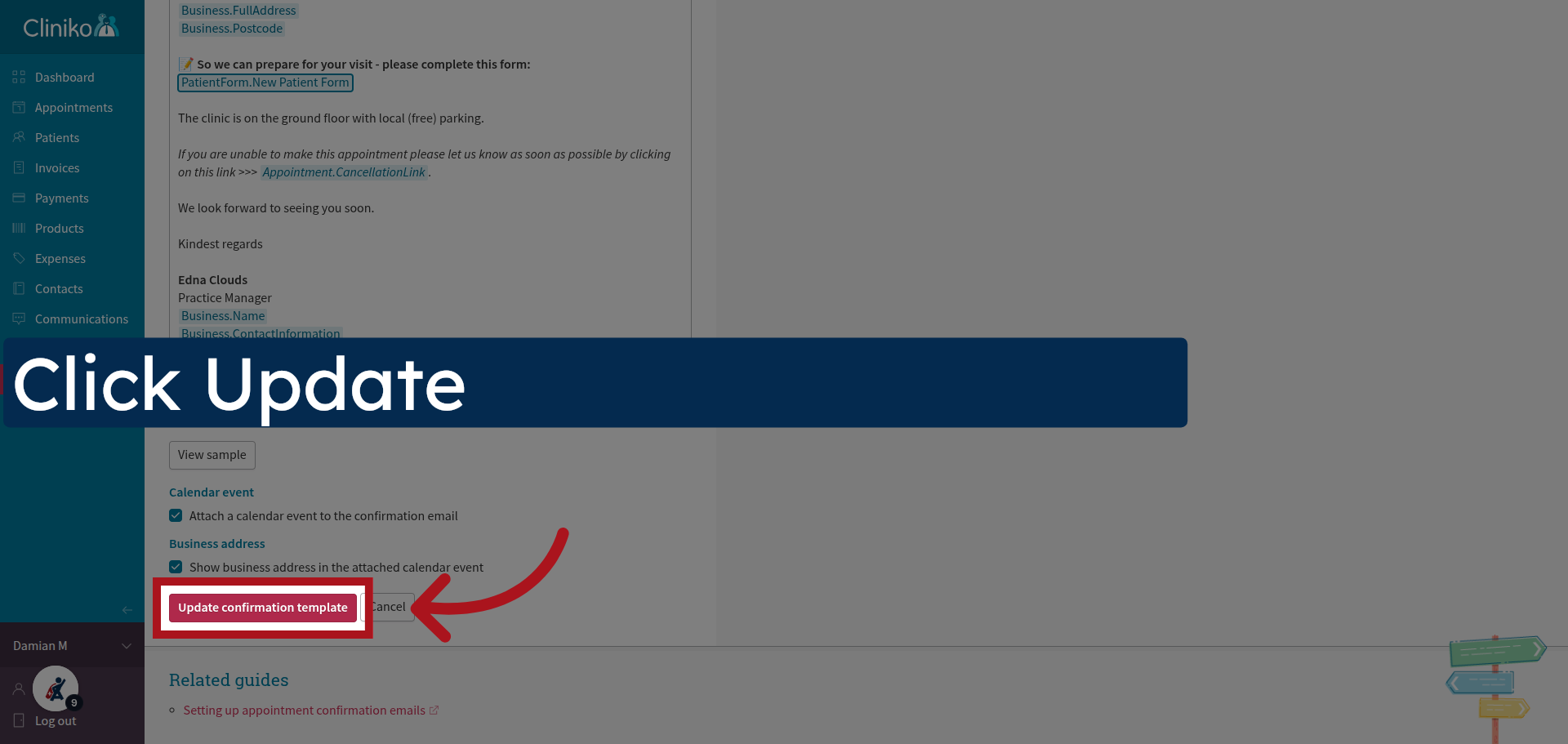
8. Update Confirmation Template
Click "Update confirmation template" to save the email template.
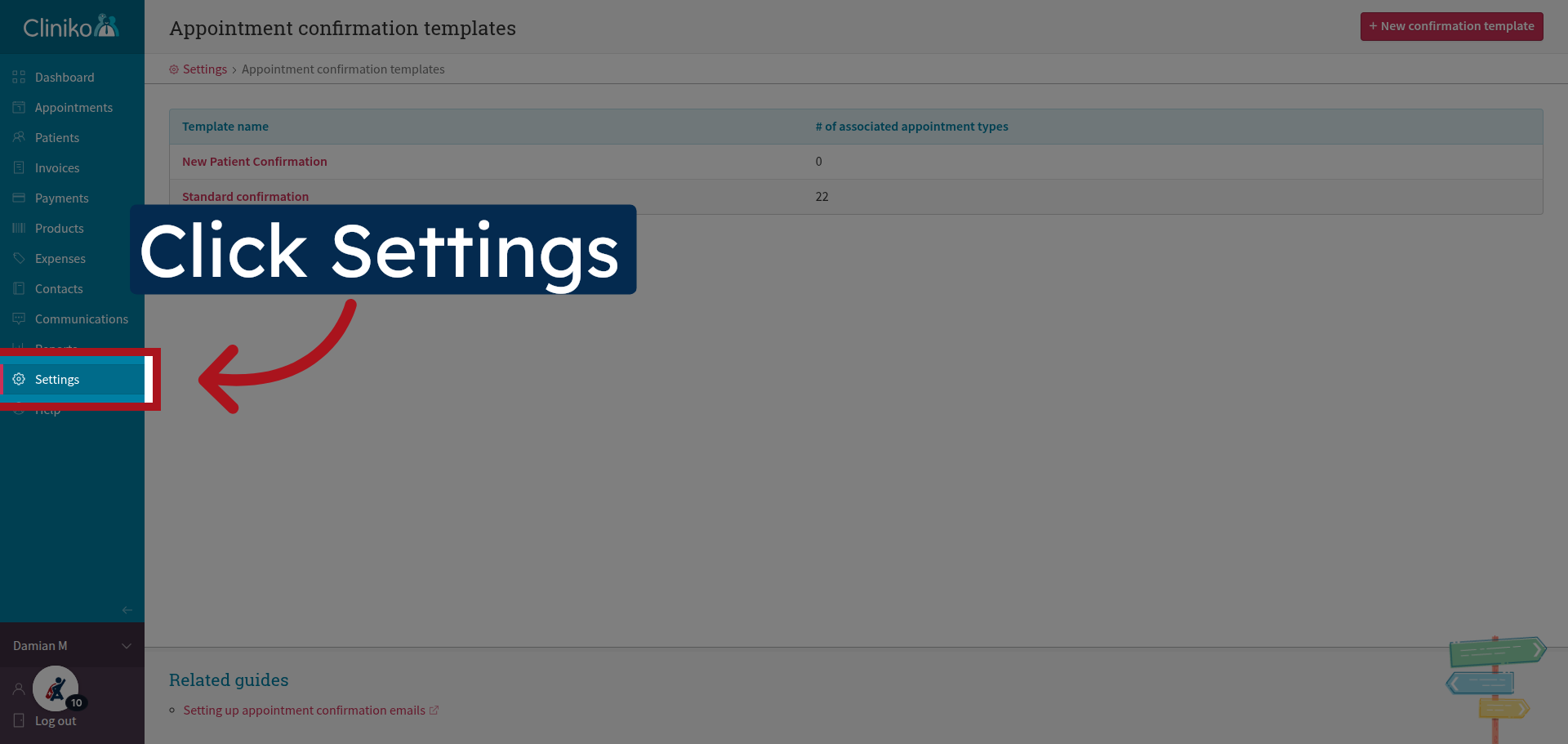
9. Return to Settings
Click "Settings" to go back to the main configuration menu.
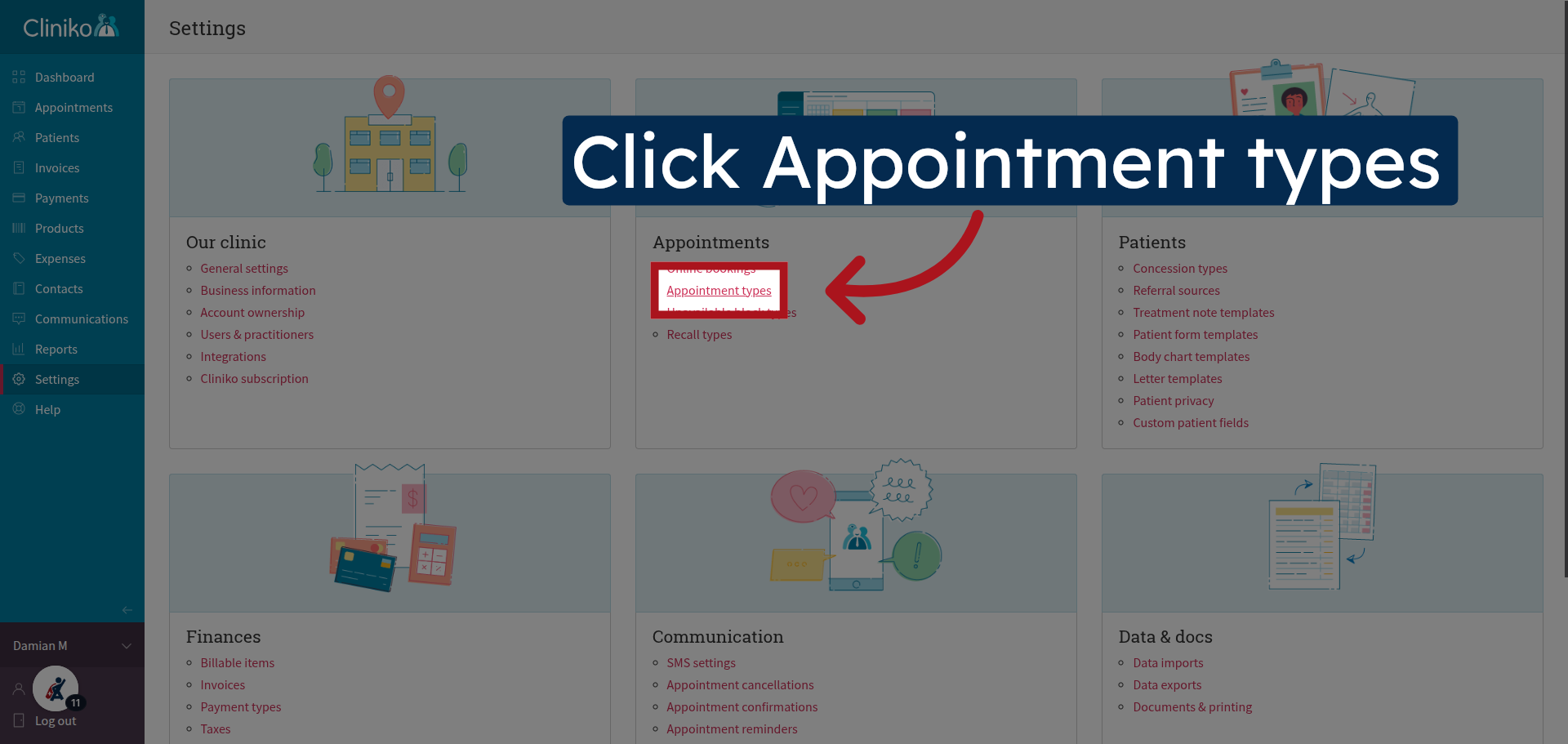
10. Access Appointment Types
Navigate to the "Appointment types" in the Appointments section.
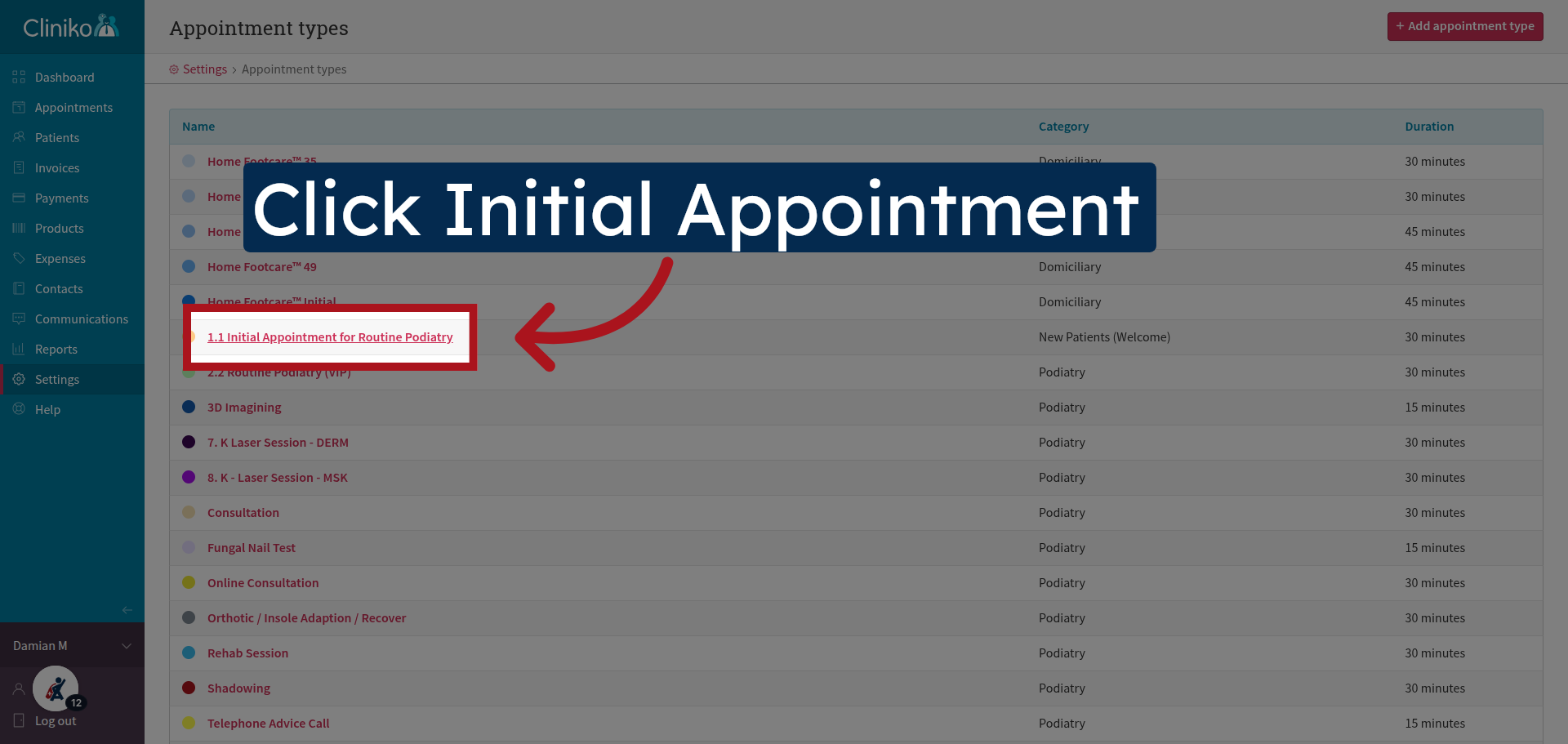
11. Select Specific Appointment Type
Find and click on the appointment type you use for new patients.
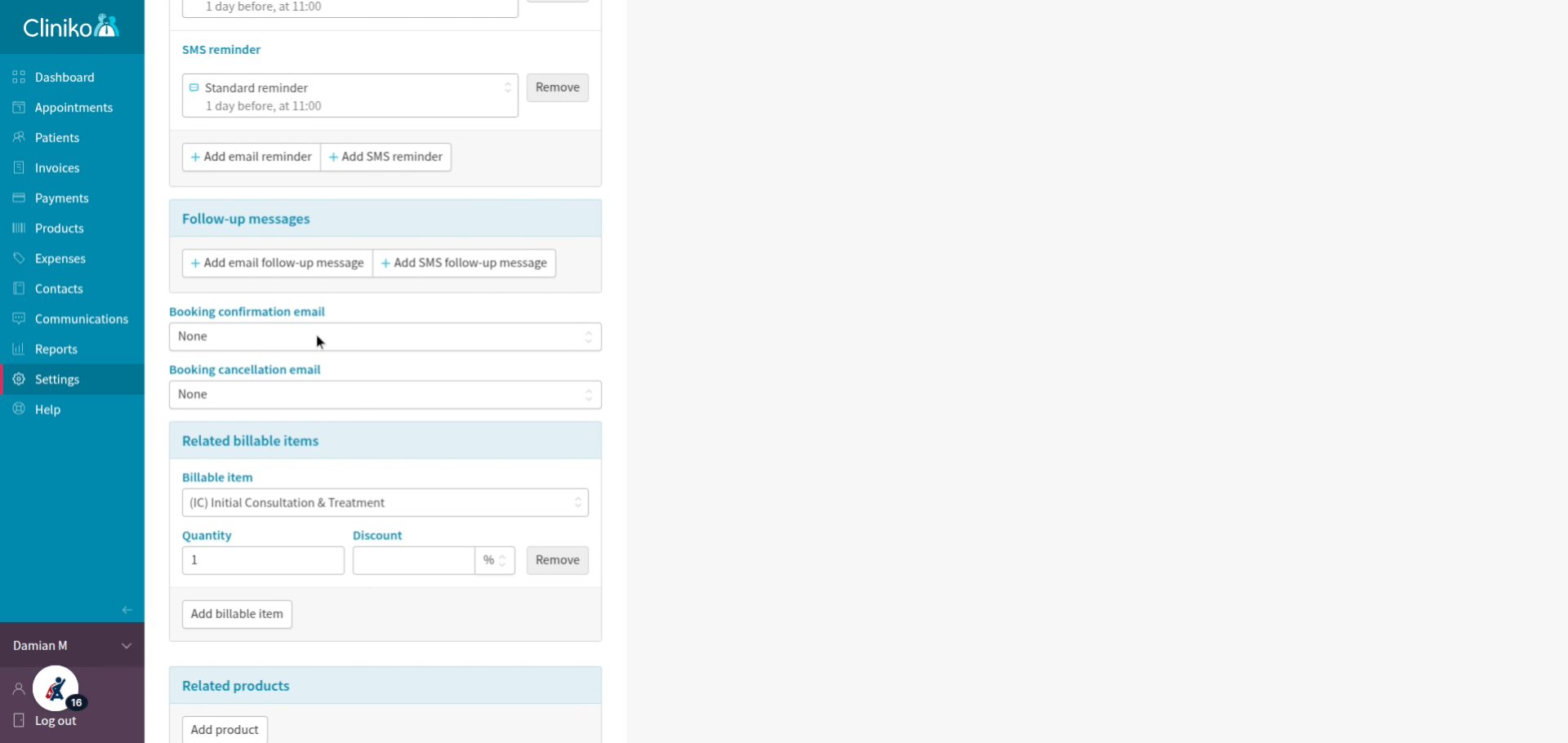
12. Fill Confirmation Template Field
Under the 'Booking Confirmation Email' select the New Patient Template.
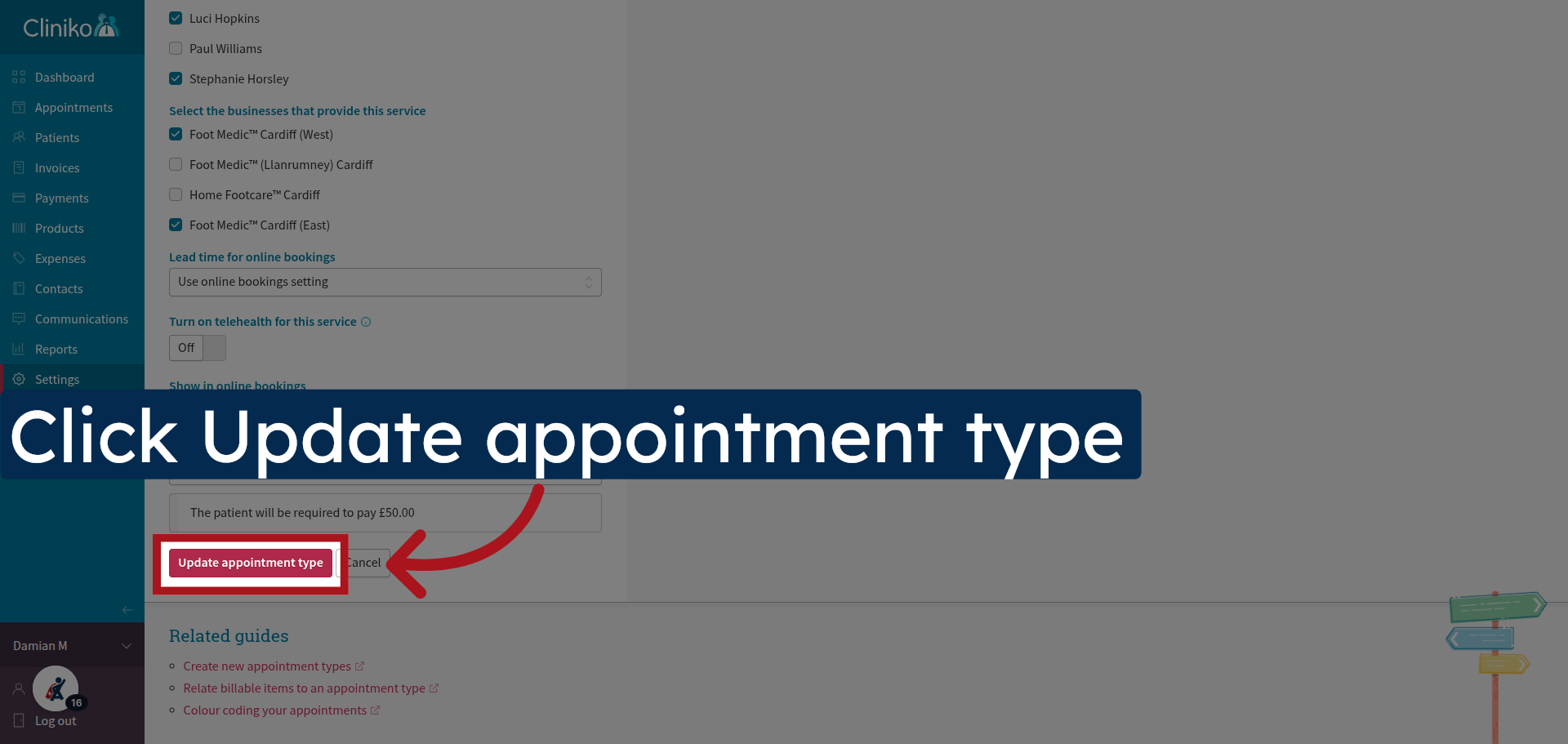
13. Save Appointment Type Changes
Remember to "Update appointment type" to save all changes made to this appointment category.
All 'New Patients' will now receive the new patient confirmation and a link to the new patient form.